



 For all latest news, follow the Daily Sun's Google News channel.



Free AI video generator: 5 best tools for beginners
AI video generation has changed a lot in
a very short time.
A few years ago, creating a
professional-looking video usually meant having a camera, lighting setup,
editing software, a production team, and a reasonable budget. Today, you can
start with something as simple as an idea, a written prompt, or even a single
image and turn it into a cinematic-looking video.
But there is another problem now: too
many AI tools.
I have personally explored and used
different AI image and video generation platforms, and one thing has become
very clear to me: choosing the right platform is often more important than
choosing the most popular AI model.
This is especially relevant for young
creators in Bangladesh.
A lot of people want to learn AI content
creation for freelancing, digital marketing, advertising, social media,
YouTube, product promotion, or even future creative jobs. But when someone is
just getting started, the same questions usually come up:
Which AI video generator should I use?
Which platform actually gives good
results?
Where should I buy the subscription from?
How many credits does one video consume?
Can I create both images and videos from
the same platform?
These are important questions because AI
subscriptions can become expensive very quickly if you start paying for several
tools at the same time.
That is why I personally prefer multi-model
AI platforms.
Instead of subscribing separately to five
or six different AI models, these platforms allow you to access multiple image
and video models from one place. You can experiment, compare results, and
gradually understand which model works best for your type of content.
Based on my experience and exploration,
here are five AI platforms I recommend checking out, in this order.
1. Higgsfield
My choice for cinematic
videos, advertising content and advanced camera movement
Higgsfield is one of the first platforms
I look at when I want a video to feel more cinematic.
What I particularly like about Higgsfield
is its focus on movement. Many AI-generated videos can look impressive but
still feel a little static. Higgsfield becomes more interesting when the camera
itself is part of your creative idea.
It works particularly well for fashion
visuals, product commercials, social media advertising, AI influencers,
UGC-style videos, character content and short cinematic clips.
Higgsfield has also grown beyond being a
simple AI video generator.
The platform now brings together image
generation, video generation, characters, lip-sync, AI influencer tools, Ads
Studio, Cinema Studio, UGC tools and several third-party AI video models inside
one ecosystem.
Higgsfield pricing
According to its current pricing
structure, Higgsfield lists approximately:
●
Starter: $15/month with 200
credits
●
Plus: $49/month with 1,000
credits
● Ultra: $129/month with 3,000
credits
Paid plans include commercial usage,
while the higher plans unlock additional models and features such as Start
& End Frame, Higgsfield Speak and UGC Builder.
How many credits does
one video use?
There is no single fixed answer.
Credit usage depends on the model you
select, video duration, resolution and other generation settings.
The good thing is that Higgsfield shows
you the required credits before you press Generate.
For example, some current model costs are
approximately:
●
Kling
3.0, 720p, 5 seconds:
around 7 credits
●
Kling
3.0, 1080p, 5 seconds:
around 8 credits
● Seedance 2.0 Fast,
720p, 5 seconds:
around 12 credits
More advanced models, longer durations
and higher resolutions will naturally use more credits.
Why I like Higgsfield
For me, Higgsfield becomes especially
useful when I am creating something for advertising or when I want a more
polished cinematic feel.
You can experiment with camera movement,
product shots, fashion visuals, characters and commercial-style scenes rather
than simply creating a moving image.
Best for: Cinematic video, fashion, product
advertising, AI influencers, UGC ads and social media commercials.
Beginner rating: 9/10
Official subscription: Higgsfield Pricing
How to create a video
with Higgsfield
The workflow is fairly simple:
- Create
a Higgsfield account and open the Video section.
- Choose
either Text-to-Video or Image-to-Video.
- Select
the video model you want to use, such as Kling or Seedance.
- If
you want better character or product consistency, upload a reference
image.
- Write
a prompt describing your subject, movement, environment and camera
movement.
- Choose
your video duration, resolution and aspect ratio.
- Check
the credit amount shown beside the Generate button.
- Generate
your video and choose the best result.
If you are new to AI video generation, I
recommend starting with 720p and a 5-second clip.
There is no real advantage in spending a
large number of credits on a high-resolution video before you know whether your
prompt, composition and motion actually work.
Test your idea first. Once you get the
movement you want, then spend extra credits on a better-quality generation.
2.
OpenArt
My choice for the best
overall multi-model creative platform
If I had to describe OpenArt in one word,
it would probably be flexible.
It is one of the most complete AI
creative platforms I have used because it combines image generation, video
generation, character creation, audio and editing tools in one interface.
Instead of paying separately for multiple
AI video generators, OpenArt gives you access to a large selection of models.
Depending on availability, you can work
with models such as Kling, Seedance, Veo, MiniMax, PixVerse, Wan, Grok and many
others.
The platform currently advertises access
to 100+ premium image, video and audio models.
OpenArt pricing
With annual billing, the current pricing
is approximately:
●
Starter: $13/month with 4,000
credits
●
Plus: $27/month with 12,000
credits
●
Pro: $44/month with 24,000
credits
● Wonder: $175/month with
106,000 credits
OpenArt also provides new users with free
credits, so you can test the platform before deciding whether you want a paid
plan.
How many credits does a
video use?
This is one area where I think OpenArt
does a good job.
The cost varies between models, but the
platform makes the differences fairly easy to understand.
For example:
●
Kling
3.0, 720p, 5 seconds with audio: about 175 credits
●
Veo
3.1, 720p, 4 seconds:
about 80 credits
●
Seedance
2.5, 720p, 5 seconds:
about 650 credits
●
Seedance
2.0, 720p, 5 seconds:
about 400 credits
●
PixVerse
V6, 720p, 5 seconds:
about 70 credits
● Kling 2.6, 720p, 5
seconds:
about 60 credits
This is also a good example of why
beginners should not compare AI subscriptions only by looking at the number of
monthly credits.
A plan offering 4,000 credits may sound
much better than another plan offering 1,000 credits, but those numbers mean
very little until you understand how many credits each generation actually
costs.
Why I like OpenArt
The biggest advantage for me is that I
can experiment without constantly moving between websites.
I can generate an image, build a
character, animate that image, create audio, edit the result and compare
several different video models from one workspace.
That can be especially valuable for
freelancers.
One client might want a realistic product
commercial. Another may ask for an animated character. Someone else might want
a social media Reel or AI-generated lifestyle video.
Having several models available in one
place gives you more flexibility.
Best for: Freelancers, social media content,
character videos, marketing videos, image-to-video and experimenting with
different AI models.
Beginner rating: 9.5/10
Official subscription: OpenArt Pricing
How to create a video
with OpenArt
- Create
an account and go to Video → Text to Video or Frame to Video.
- Select
the video model you want to test.
- If
you are a beginner, start with a lower-cost model rather than immediately
choosing the most expensive option.
- Enter
your prompt or upload a starting image.
- Choose
your aspect ratio:
○ 16:9 for YouTube and
landscape videos
○
9:16 for Reels, Shorts and
TikTok
○
1:1 for square social
media content
- Select
your duration and resolution.
- Check
the credit cost.
- Generate
your video.
- Try
the same image with another model.
That last step is something I strongly
recommend.
Using the same reference image with
different models will quickly teach you how differently each AI model
understands movement, faces, environments and camera instructions.
That makes OpenArt a very useful learning platform.
3.
Dreamina
My recommendation for
beginners who want to learn without spending too much initially
Dreamina is another platform I recommend
to people who are completely new to AI content creation.
It comes from the CapCut ecosystem, so
the overall experience feels quite accessible for people who are already
familiar with social media content and mobile video editing.
Dreamina combines AI image creation,
image-to-video, text-to-video, lip-sync and other creative tools.
It also provides access to ByteDance
models such as Seedream and Seedance.
Dreamina pricing
Its regular pricing structure currently
includes approximately:
●
Basic: 1,575 credits
● Standard: 3,885 credits
Larger Advanced and Ultra credit packages
are also available.
One thing to keep in mind is that
Dreamina frequently offers regional pricing and promotions. The final
subscription cost may therefore vary depending on your location and whatever
campaign is running when you subscribe.
Dreamina has also offered recurring free
credits.
One of its official free-credit guides
mentions 120 free daily credits, although free allowances and
promotional offers can change.
How many credits does a
video use?
Dreamina is slightly harder to explain
using one fixed number.
The cost depends on the Seedance version,
duration, resolution, subscription plan and other settings.
Because of this, Dreamina sometimes
explains its plans in terms of the estimated number of videos you can generate
rather than giving one permanent credit cost for every video.
My advice here is very simple:
Always check the credit amount before
pressing Generate.
It only takes a second, and it can save
you a lot of credits.
Why I like Dreamina
I think Dreamina works particularly well
as a learning platform.
A beginner can go through a complete
creative process like this:
Prompt → AI Image → Image-to-Video
→ Enhancement → Final Social Content
You do not need to understand a
complicated filmmaking workflow before creating something useful.
For students or young creators in
Bangladesh who are starting with AI content creation, that simplicity can be
very helpful.
Best for: Beginners, students, social media
content, image animation, TikTok/Reels and learning AI prompting.
Beginner rating: 9.5/10
Official subscription:
Dreamina Pricing
How to create a video
with Dreamina
- Create
your Dreamina account.
- Open
the AI Video Generator.
- Select
Text-to-Video or Image-to-Video.
- Choose
a Seedance model.
- Upload
your reference image if needed.
- Write
your motion prompt.
- Select
your video duration and aspect ratio.
- Check
how many credits will be deducted.
- Generate
your video.
- If
you need captions, music, transitions or final editing, continue the
project in CapCut.
For someone who has never created an AI
video before, Dreamina is one of the first platforms I would recommend testing.
4.
Morphic
My choice for AI
filmmaking and workflow-based content production
Morphic feels a little different from
many other AI generation platforms.
Rather than focusing only on generating
one image or one video clip, it is moving toward a more complete creative
workflow.
The platform combines tools such as Canvas,
Copilot, Compose, workflows, image generation, video editing, audio and AI
filmmaking features.
I find this direction interesting because
professional AI content production is gradually moving beyond the idea of
typing one prompt and downloading one finished video.
For bigger projects, we need multiple
shots, reference images, audio, editing and a way to organize everything
together.
That is where a workflow-focused platform
starts to make more sense.
Morphic pricing
Morphic currently offers a Free tier with
20 one-time credits.
Its paid plans currently include
approximately:
●
Basic: $19/month with 2,400
monthly credits
●
Standard: $24/month with 3,625
credits
●
Pro: $45/month with 6,350
credits
● Max: $170/month with 24,650
credits
These prices are based on the currently
displayed annual billing structure.
How many credits does a
video use?
Morphic often calculates video generation
costs per second.
For example:
●
Flux
3 at 720p:
around 11 credits per second
○
A
5-second video would cost roughly 55 credits.
●
Gemini
Omni Flash 720p:
around 15 credits per second
○
A
5-second clip would cost approximately 75 credits.
● Seedance 2.5, 720p, 5
seconds:
roughly 165–200 credits depending on your plan and inputs.
Costs may also increase when you attach
additional video references because input and output duration can both affect
the final price.
Morphic itself recommends checking the
cost shown on the Generate button because the price displayed inside Studio
should be treated as the final price if there is ever a difference between
documentation and the interface.
Why I like Morphic
Morphic becomes more interesting when I
stop thinking about creating one clip and start thinking about creating an entire
video project.
You can generate individual shots, create
missing scenes, combine clips, add voice, captions or music and then assemble
the project through Compose.
That makes it useful for storytelling and
more structured AI filmmaking.
Best for: AI filmmaking, storytelling, multi-shot
videos, creative agencies and workflow-based content production.
Beginner rating: 8/10
Official subscription: Morphic Pricing
How to create a video
with Morphic
- Start
a new project.
- Choose
whether you want to begin with text, an image or a script.
- Select
an AI video model.
- Describe
your first shot.
- Generate
the clip.
- Create
additional shots separately rather than asking AI to generate the entire
project at once.
- Add
your generated clips to Compose.
- Add
voice, captions, music or sound effects.
- Arrange
everything on the timeline.
- Export
your completed video.
If your long-term goal is to work on
professional AI video projects rather than only creating short experimental
clips, learning this kind of workflow can be valuable.
5.
Magnific
My choice for
professional creative production, upscaling and a larger asset ecosystem
A lot of people still know Magnific
mainly as an AI image upscaler.
That is understandable because image
enhancement and upscaling were a major part of its popularity.
But Magnific has expanded significantly.
Today, the platform combines AI image
generation, video generation, image and video upscaling, editing, audio
generation, Spaces, design tools and access to a large stock-content ecosystem.
Magnific pricing
Its current Premium plan is
approximately:
●
$20/month, or
● $14.50/month when
billed annually
The annual plan includes approximately 240,000
credits per year.
The Plus plan is approximately:
●
$45/month, or
● $33.75/month when
billed annually
It includes approximately 600,000
credits per year.
Higher Pro tiers offer significantly
larger credit allowances.
How many credits does a
video use?
Magnific provides some useful examples
that show how dramatically video-generation costs can change between models.
For example:
●
Kling
3.0 Pro 1080p, 5 seconds:
450 credits
●
Kling
4.0 1080p, 3 seconds:
840 credits
●
Seedance
2.5 720p, 4 seconds:
1,760 credits
●
Seedance
2.5 1080p, 4 seconds:
4,400 credits
●
MiniMax
H3 Max Turbo 768p, 5 seconds:
200 credits
● Google Veo 3.1 4K with
audio, 4 seconds:
2,080 credits
These numbers show exactly why
understanding credits is so important.
Two AI models may generate videos of
roughly the same duration while consuming completely different amounts of your
subscription credits.
Why I like Magnific
I think Magnific becomes particularly
useful for designers, marketers and agencies because generation is only one
part of the workflow.
You can create a visual, turn it into a
video, enhance it, upscale the final output and work with stock assets without
constantly jumping between different platforms.
Best for: Agencies, designers, advertising,
professional marketing content, AI upscaling and high-quality visual
production.
Beginner rating: 8/10
Official subscription: Magnific Pricing
How to create a video
with Magnific
- Open
the AI Video Generator.
- Choose
the video model you want to use.
- Select
Text-to-Video or Image-to-Video.
- Upload
a reference image if required.
- Write
your motion and camera prompt.
- Select
your resolution and duration.
- Check
the required credits.
- Generate
the video.
- Use
Magnific's enhancement or video upscaling tools if needed.
- Export
your final version
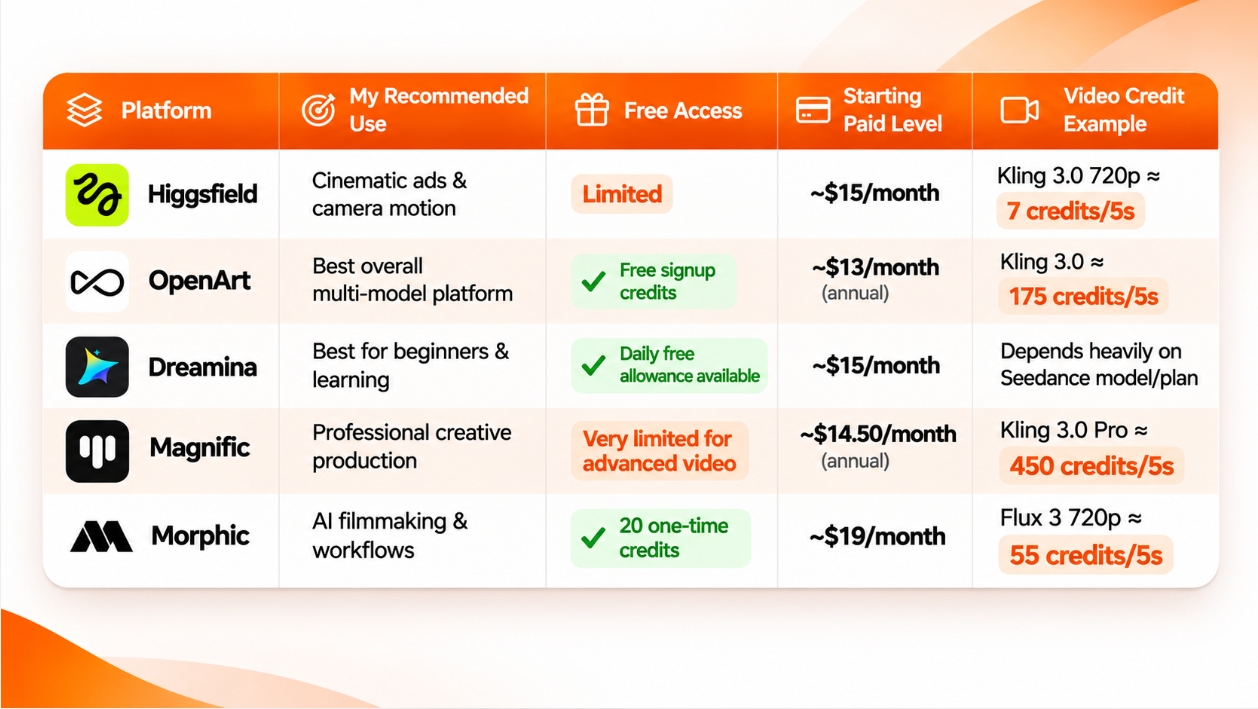
There is one important thing I want beginners to understand from this comparison:Credits cannot be compared directly between platforms.
For example, 1,000 credits on Higgsfield and 1,000 credits on Magnific do not have the same monetary value, and they will not necessarily give you the same number of generations.
Each company has its own credit system.
So before buying any subscription, check three things:
How many credits do I receive?
How much does my preferred model cost per generation?
How many realistic videos can I create with my monthly allowance?
That will give you a much better picture than simply comparing credit numbers.
Which AI Video Generator Do I Recommend for Beginners?
If you have never created an AI-generated video before, I would suggest beginning with Dreamina or OpenArt.
Dreamina is a good option when your main goal is to experiment, understand prompting and learn the basic workflow without making things too complicated.
OpenArt is a stronger option when you want to explore several models and understand the wider AI image-and-video ecosystem.
Once you become comfortable with prompting and image-to-video generation, I would start exploring Higgsfield, particularly if you are interested in advertising, cinematic visuals, fashion content or camera movement.
If your goal is AI filmmaking, storytelling and longer multi-shot projects, spend some time learning Morphic.
And once you start working professionally with advertising, design assets, upscaling and higher-end creative production, Magnific becomes much more interesting.
There is no single platform that is perfect for everyone.
The best platform depends on what you actually want to create.
My Simple AI Video Workflow for Beginners
No matter which AI platform you choose, I recommend following a simple production workflow:
Idea → Script → Reference Image → Image Generation → Image-to-Video → Sound/Voice → Editing → Export
One mistake I see beginners make is asking an AI model to generate an entire 30-second commercial in one go.
I would not recommend that.
Instead, create the video shot by shot.
For example:
Shot 1: Product sitting on a table — 5 seconds
Shot 2: Close-up camera movement around the product — 5 seconds
Shot 3: Person using the product — 5 seconds
Shot 4: Final product hero shot — 5 seconds
Now you have four separate clips.
Bring them into CapCut, Adobe Premiere Pro or another video editor and combine them.
This approach gives you far more control over the final result.
If one shot looks bad, you only need to regenerate that particular shot instead of generating the entire video again.
You will also get better consistency and usually spend your credits more efficiently.
A Simple AI Video Prompt Formula I Use
One of the most important skills in AI video creation is learning how to write a useful prompt.
You do not need to make your prompt unnecessarily complicated.
A simple structure that works well for me is:
Subject + Action + Environment + Camera Movement + Lighting + Style
For example:
“A young entrepreneur working on a laptop inside a modern creative studio, slowly looking toward the camera, subtle natural body movement, slow cinematic dolly-in camera movement, warm afternoon window light, realistic skin texture, shallow depth of field, professional commercial cinematography.”
Notice what is happening in this prompt.
I am not simply describing what the person looks like.
I am also telling the AI:
● what the person is doing,
● how I want the camera to move,
● what type of environment I want,
● what kind of lighting the scene should have,
● and what the final video should visually feel like.
That is where good AI video prompting really begins.
The more clearly you can imagine your shot before generating it, the easier it becomes to explain that shot to the AI.
How AI Video Skills Can Create Career Opportunities
I believe AI content creation can create interesting opportunities for young people in Bangladesh.
And I do not mean only becoming an “AI creator.”
These skills can become part of existing careers such as digital marketing, video production, advertising, design, social media management and freelancing.
For example, you could offer services such as:
● social media videos,
● product commercials,
● AI UGC advertisements,
● real-estate videos,
● image-to-video animation,
● music videos,
● YouTube visuals,
● Facebook and Instagram ads,
● AI character content,
● explainer videos,
● and creative content production.
You could provide these services to local businesses, agencies and companies, or work with international clients through freelance marketplaces and direct client relationships.
But there is something more important than knowing how to use an AI generator.
Do not only learn how to press the Generate button.
Learn storytelling.
Learn marketing.
Learn prompting.
Learn video editing.
Learn composition.
Learn how to communicate with clients.
Most importantly, learn how to understand what a client is actually trying to achieve.
AI should become part of your production toolkit.
It should not become your entire skill set.
Someone who understands marketing, storytelling and creative direction and also knows how to use AI will usually have much more value than someone who only knows how to generate a video.
Final Thoughts
I started exploring these platforms because I wanted to understand which ones genuinely make AI content creation easier instead of forcing creators to maintain subscriptions to dozens of different services.
And my biggest recommendation for beginners is very simple:
Do not buy five AI subscriptions immediately.
Start with the free options.
Create your first 20–30 AI images.
Experiment with prompts.
Generate several short videos.
Make mistakes.
Try different styles.
See what happens when you change the camera instructions.
Learn why one image works better for animation than another.
Understand how credits are being consumed.
Then choose one paid platform based on the kind of work you actually want to create.
For most beginners, I would start with Dreamina or OpenArt.
For more cinematic and advertising-focused content, I would move toward Higgsfield.
For filmmaking and structured production workflows, I would explore Morphic.
And for professional generation, editing, stock assets and high-quality upscaling inside a larger creative ecosystem, Magnific is worth considering.
AI video generation is developing extremely quickly.
Models change.
Platforms change.
Prices change.
Credit systems change.
A tool that looks unbeatable today may have serious competition a few months from now.
That is why I do not think the smartest approach is becoming dependent on one particular AI tool.
Instead, learn the creative process behind the tools.
Learn how to develop an idea.
Learn how to create a strong reference image.
Learn how to write a useful prompt.
Learn how to direct movement.
Learn how to build a sequence of shots.
Learn how to edit those shots into a story.
Those skills will continue to be useful even when the technology changes.
Pricing note: Prices, free allowances, promotional offers, model availability and credit costs mentioned in this article were checked against official platform information in November 2026. AI platforms frequently update pricing and regional offers, so always confirm the latest credit cost shown before clicking Generate, and purchase subscriptions only through the platform's official website.